
Product Update: pre-submitted Q&A, AI recommendations, registration updates, and more

Caroline
05 January 2026 - 3 min
Webinars work best when they feel personal, even at scale. This month’s updates help you do exactly that, by making it easier to start real conversations early, polish your registration page, and stay in flow while you present.
Here’s what’s new.
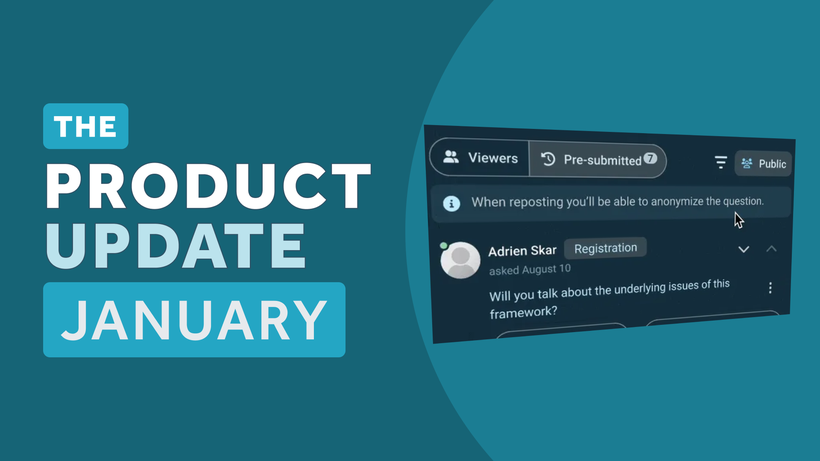
Bring pre-submitted questions into your live Q&A
Q&A should start during the registration process, not “any questions?”. You can now add a “question to presenter” field to your registration form. That means attendees can share what they want help with while they sign up, and those questions show up in your live Q&A during the webinar.
Why you’ll like this:
You get a clear read on what people actually want to learn
You can tweak your plan based on real questions, not assumptions
You can repost and answer those questions during the webinar, without juggling notes
The result is simple, a Q&A that feels more focused, more useful, and way less frantic.

AI recommendations for webinar title and description
When you create a webinar, you’ll now see AI-based suggestions for your title and description.
This is for the moments when you’re thinking, “I know what this webinar is about, I just can’t write the sentence.”
Use it to:
Turn your rough idea into a clear first draft
Make your webinar’s value easier to understand at a glance
Spend less time writing, more time building a great session
You’re still in charge of the final wording, this just helps you get out of “blank page” mode faster.

A stronger registration page, without extra work
Your registration page does a lot of heavy lifting. It builds trust, sets expectations, and answers the quiet question every attendee has, “Is this worth my time?”
Two updates help with that.
Add social profiles to your organization profile
You can now add social profiles from your organization profile in account settings or directly on the registration page. Those links can be displayed on your registration page, so people can quickly see who you are, and connect beyond the webinar.
Upload images directly to the webinar description
You can also upload images straight into your webinar description while editing your registration page. Great for speaker photos, simple visuals, or anything that makes the page feel more complete.
Small changes, but they make the whole experience feel more credible and more human.

Resume screen sharing with one click
If you’ve ever switched from screen sharing to slides mid-webinar, you know the small panic of trying to get back to the right screen without breaking your flow.
Now, when you switch from screen sharing to slides, you can jump back to your previously shared screen with one click.
It keeps demos and walkthroughs smooth, and it helps you stay focused on presenting, not on managing windows.
Want to see these updates in action?
Join our Product Update Webinar on January 21st. We’ll walk through what’s new, show real examples, and share practical tips you can use right away.
Product Update Webinar on January 21 @ 2 PM
Save my seatRelated articles
Product Update: Recurring webinar subscribers, Q&A moderation, AI Assistant and Calls to Action
Discover WebinarGeek's latest updates: subscribe contacts to recurring webinar dates, moderate Q&A before questions go public, use the AI assistant on on-demand webinars, and add calls to action while you're live.
Product update: AI webinar creation, Q&A filtering and UTM tracking
Discover WebinarGeek's latest updates: build a webinar from a text description, filter pre-submitted Q&A, redirect your registration page, use exact brand colors, and track campaigns with UTM tags.
Product update: Channels, polls and AI Assistant improvements
Discover the latest WebinarGeek updates, including improved Channels, open-ended poll answers, easier registration embeds and AI Assistant upgrades.